From Samsung to Balance Phone
A step by step guide to switch and set everything up. At the bottom you'll also find our visual guide.
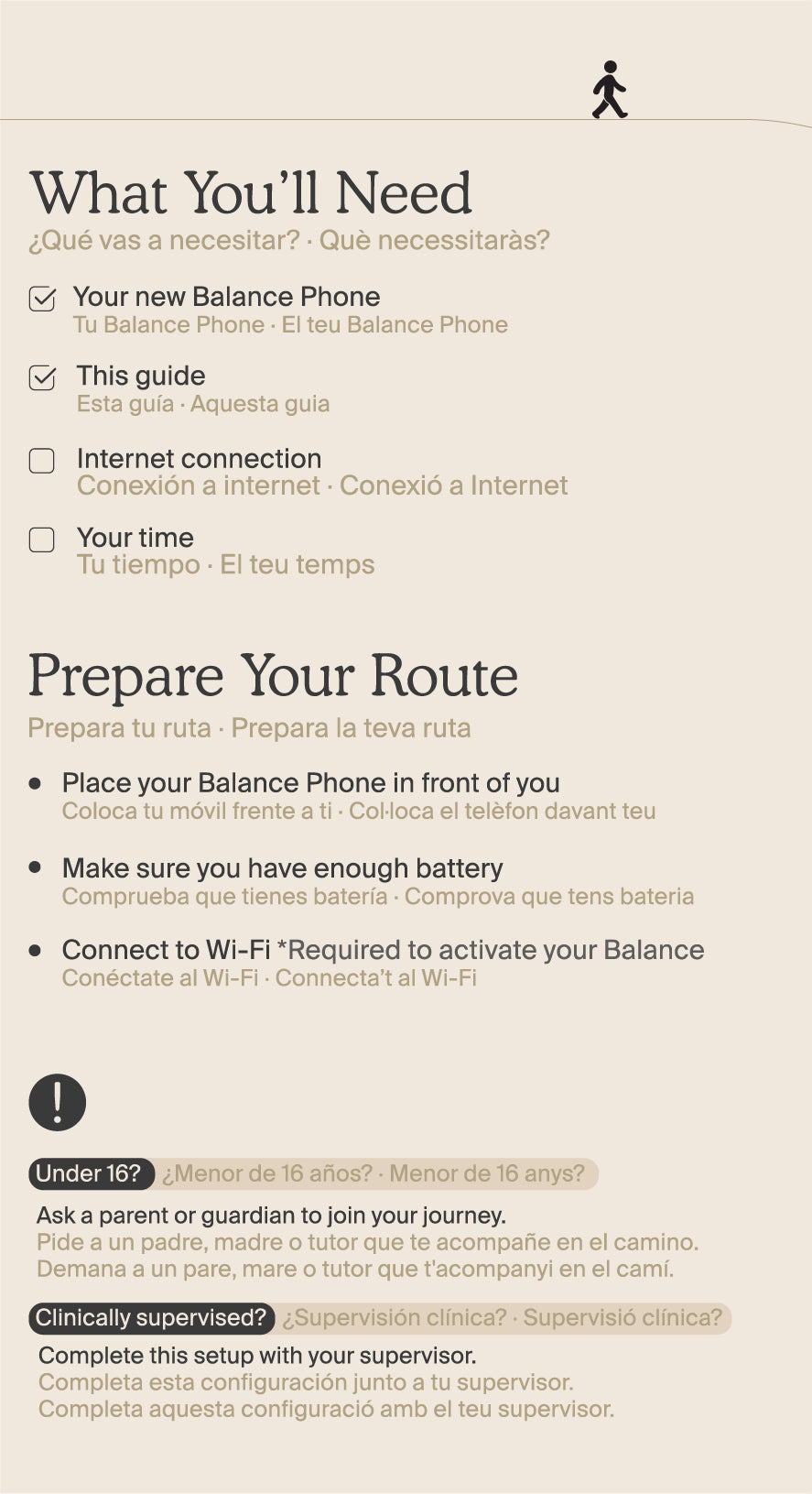
What you'll need for this setup:
-
Your Balance Phone
-
An internet connection (Wi-Fi or mobile data)
-
If the person using the phone is under 16 or under clinical supervision, an adult (a parent or guardian) needs to be present to complete the setup
Samsung basic steps
-
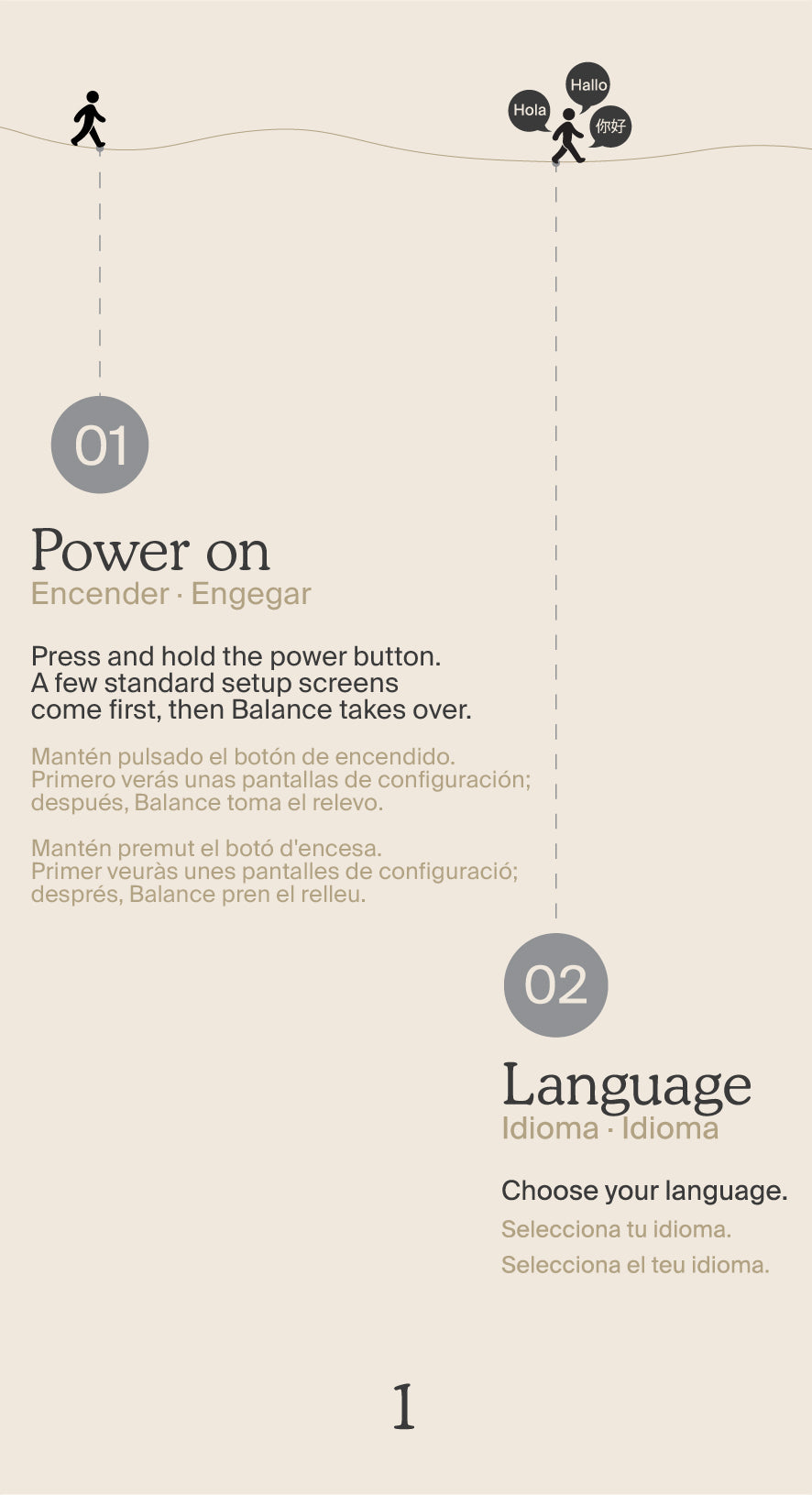
Turn it on
Press and hold the power button until the screen lights up.
-
Choose your language
Select the language you want to use on the phone.
-
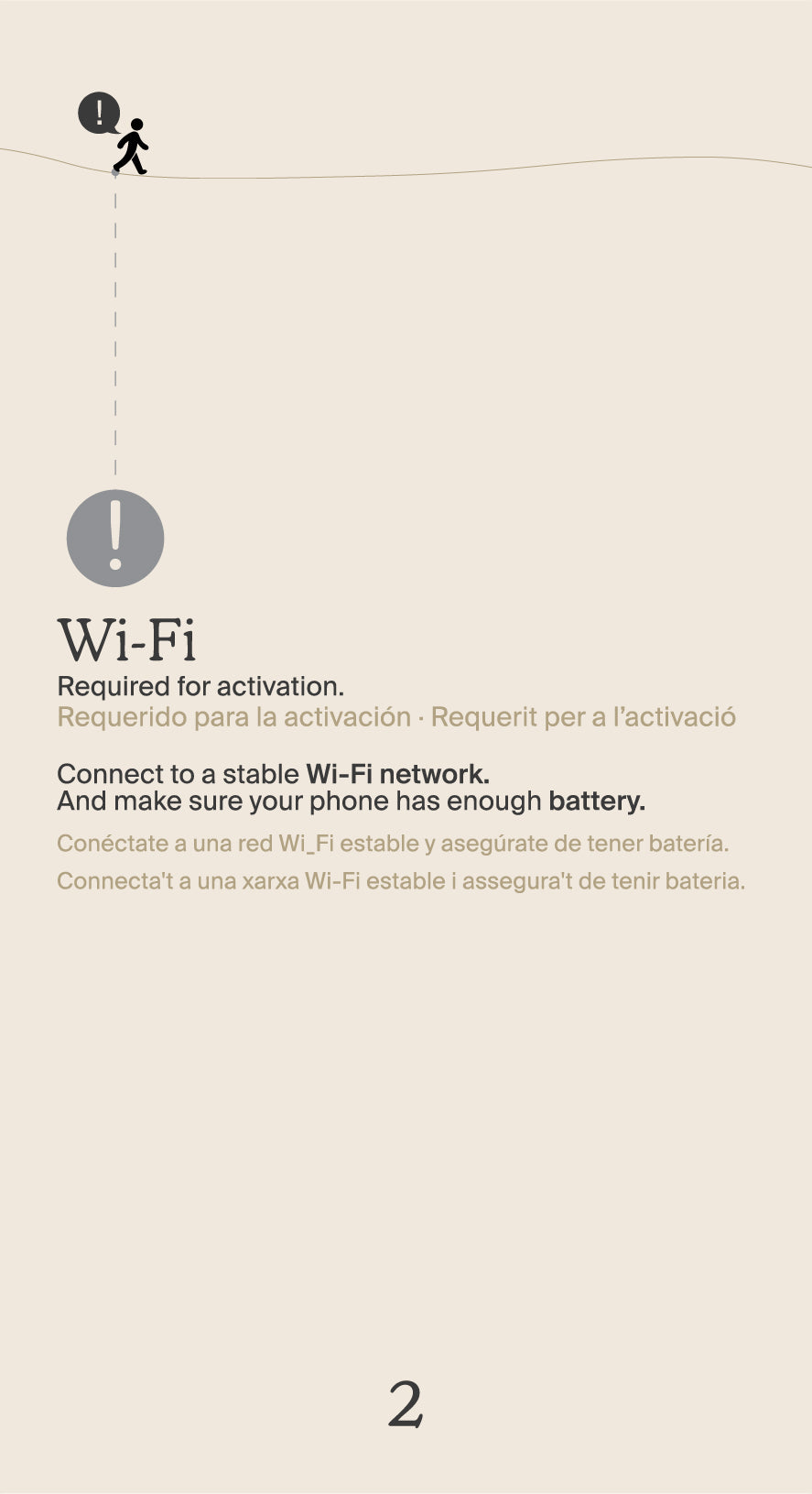
Connect to Wi-Fi
This step is required. Balance OS needs a connection to activate the phone, so make sure you are online before you continue.
-
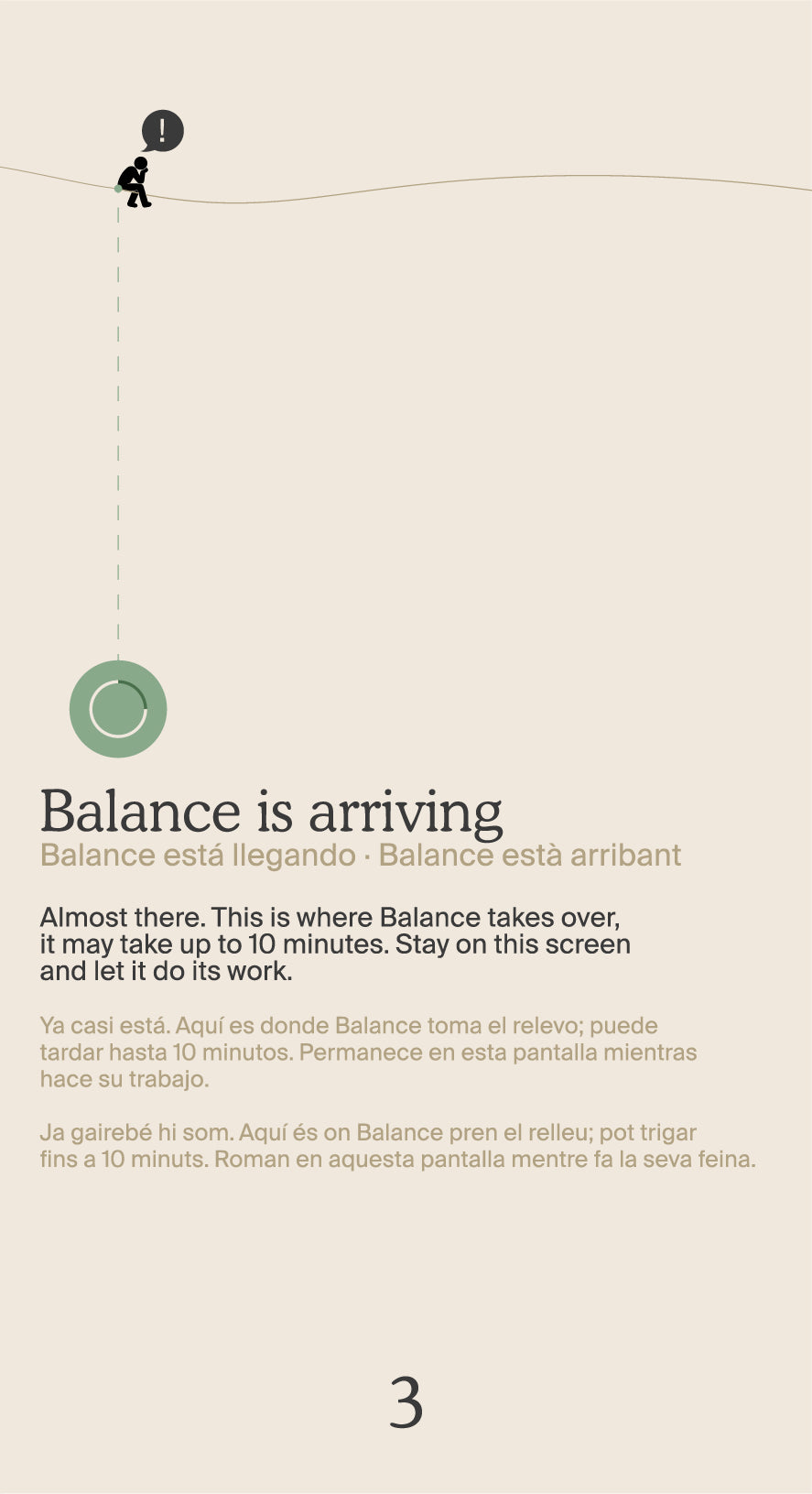
Let Balance OS arrive
You will see a screen that says we are getting things ready.
It is the moment Balance OS is being installed onto your phone, and it can take up to 10 minutes. There is nothing to do here but wait.
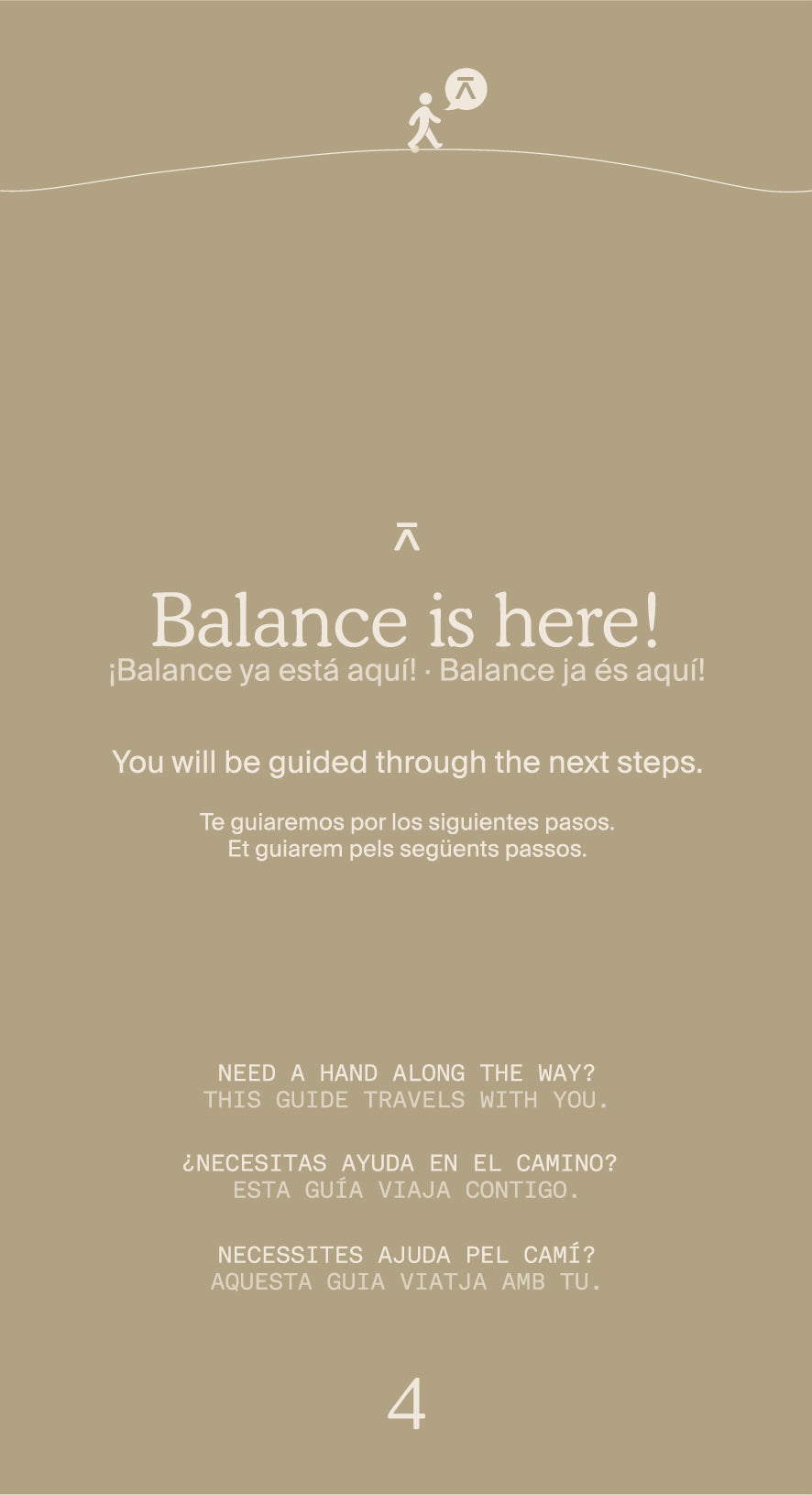
When it is ready, Balance OS opens on its own and you step inside for the first time.
Now you are in Balance Phone
-
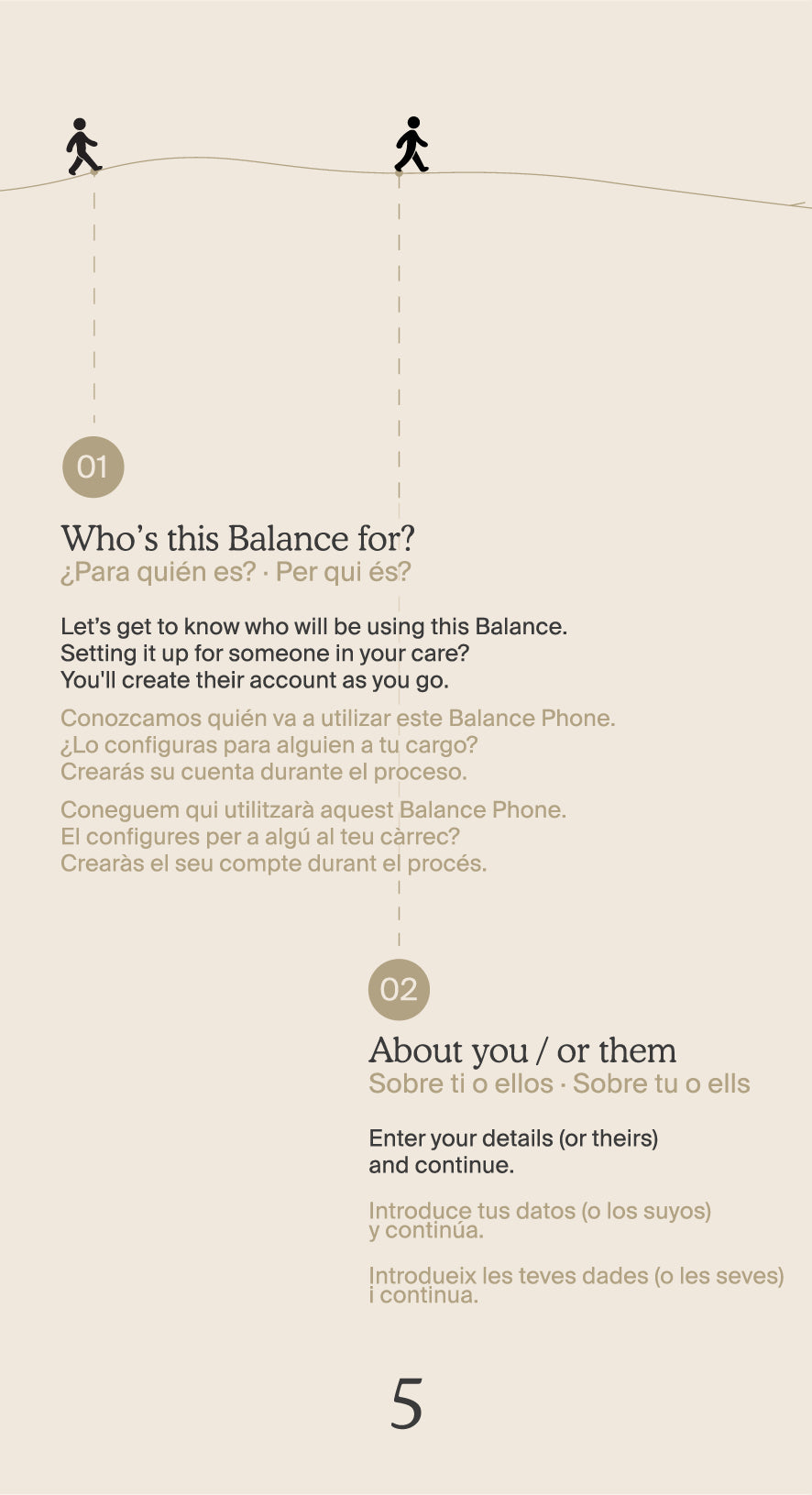
About you
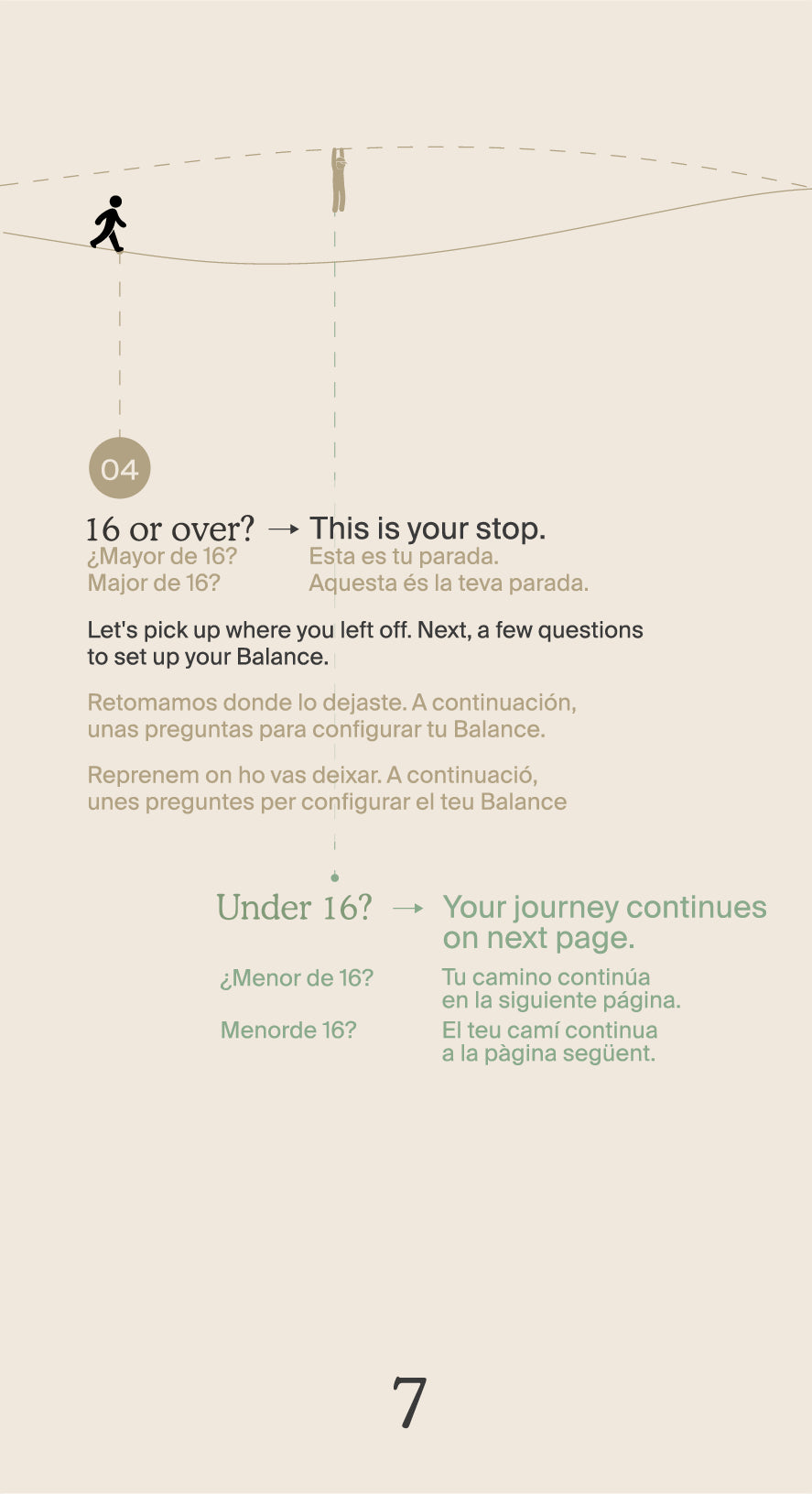
Tell us who is going to use this phone. Is it for you, or for someone in your care?
-
A little about you
We will ask a few short questions so we can shape the experience around the person who will actually be using the phone.
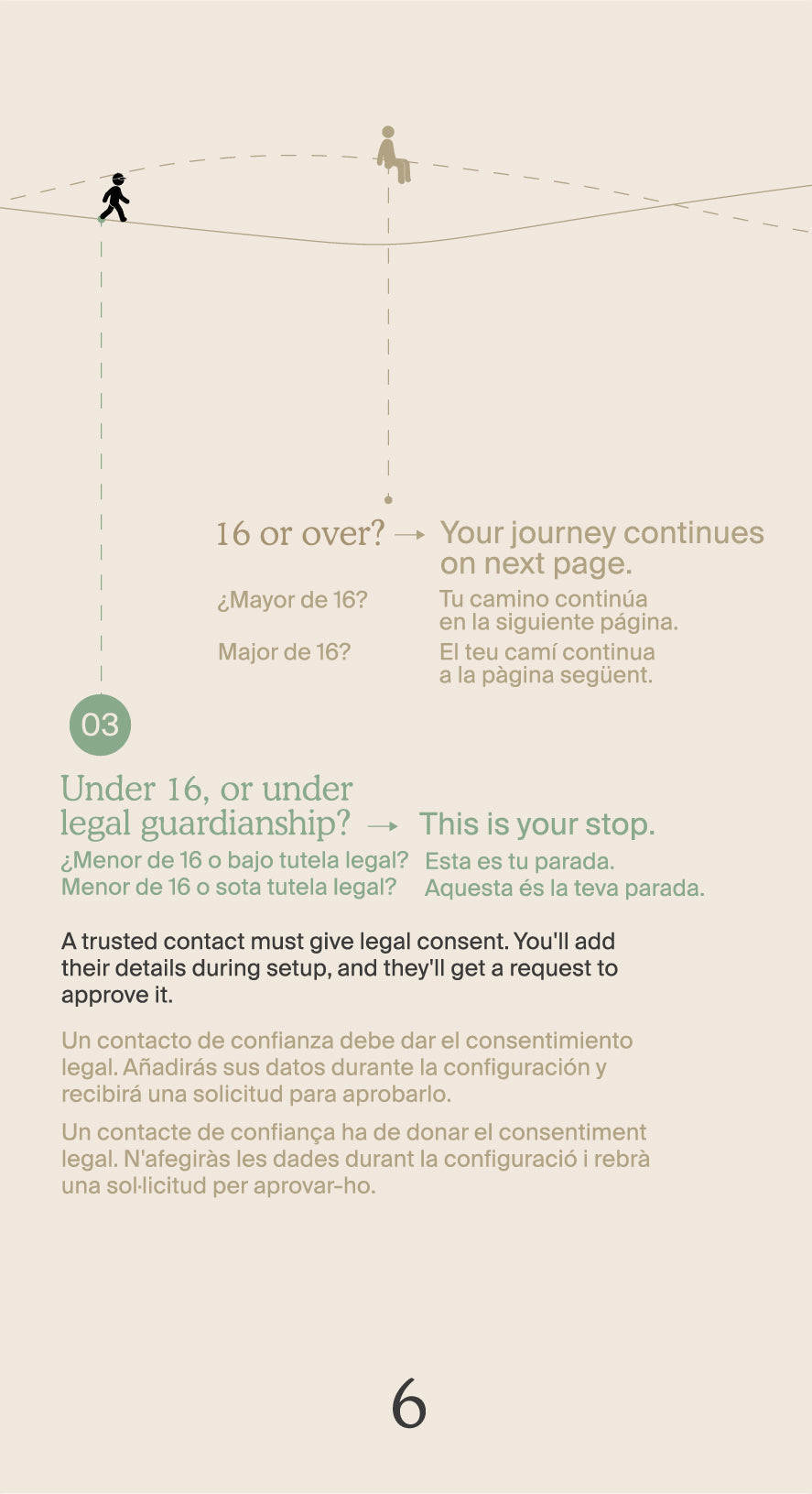
This is also where age comes in:
- 16 and over: you give your own consent and accept the legal documents.
- Under 16, or under clinical supervision: an adult or guardian completes this part. We will ask for the adult acceptance of the legal documents.
-
Grant permissions
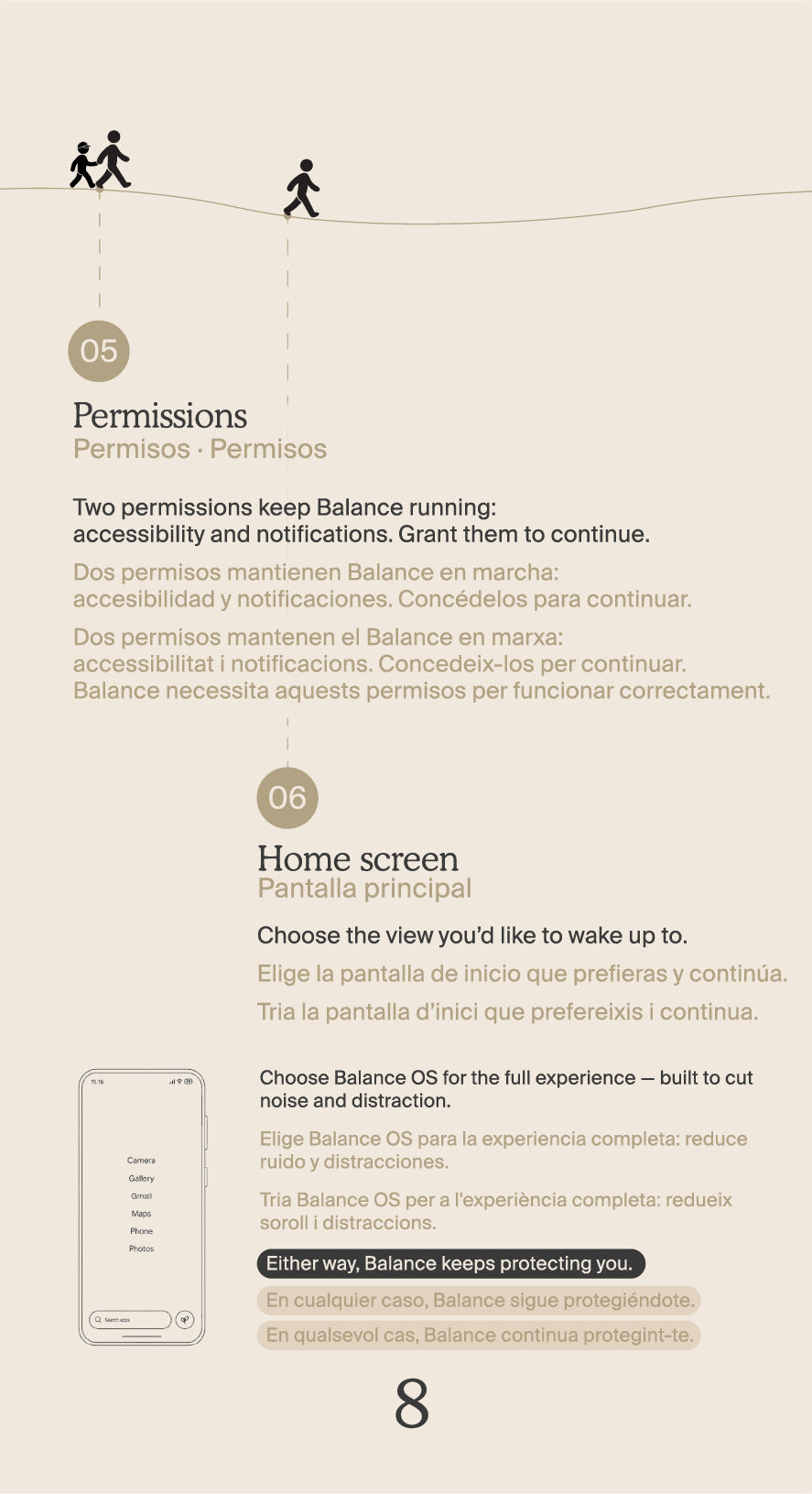
With the account ready, we will ask for a couple of permissions. These are what let Balance OS do its job properly.
- Notification access: tap Grant permission, and when Settings opens, turn the permission on.
- Accessibility: tap Grant permission, and when Settings opens, go to Installed apps, find Balance OS, and turn the permission on.
-
Choose your home screen
Now you decide how the phone looks and feels day to day:
- Balance Phone: our home screen, built for the full Balance OS experience. Minimal, quiet, no noise, no distractions.
- ONE UI: Samsung original home screen, if you would rather keep it. Either way, Balance OS keeps blocking in the background exactly the same.
Bringing your things across
This part is a little less exciting, but it is what makes the phone feel like yours.
-
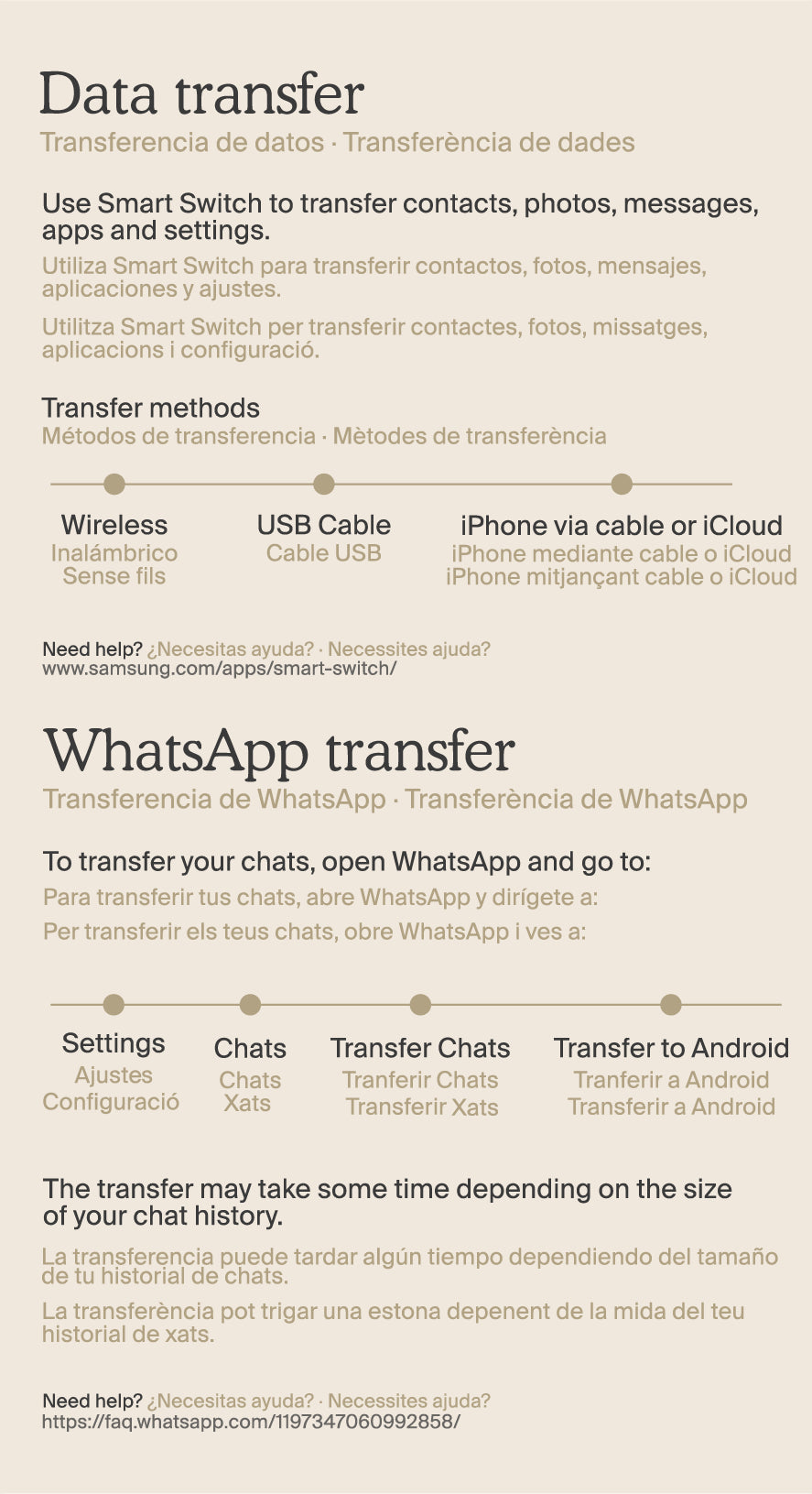
Data transfer with Smart Switch
Move your contacts, photos, messages, apps and settings from your old phone. You can do it wirelessly, with a USB-C cable, or from iCloud if you are coming from an iPhone.
-
WhatsApp
To bring your WhatsApp chats over, open WhatsApp on your old phone and go to Settings > Chats > Transfer chats to Android.
-
Your accounts
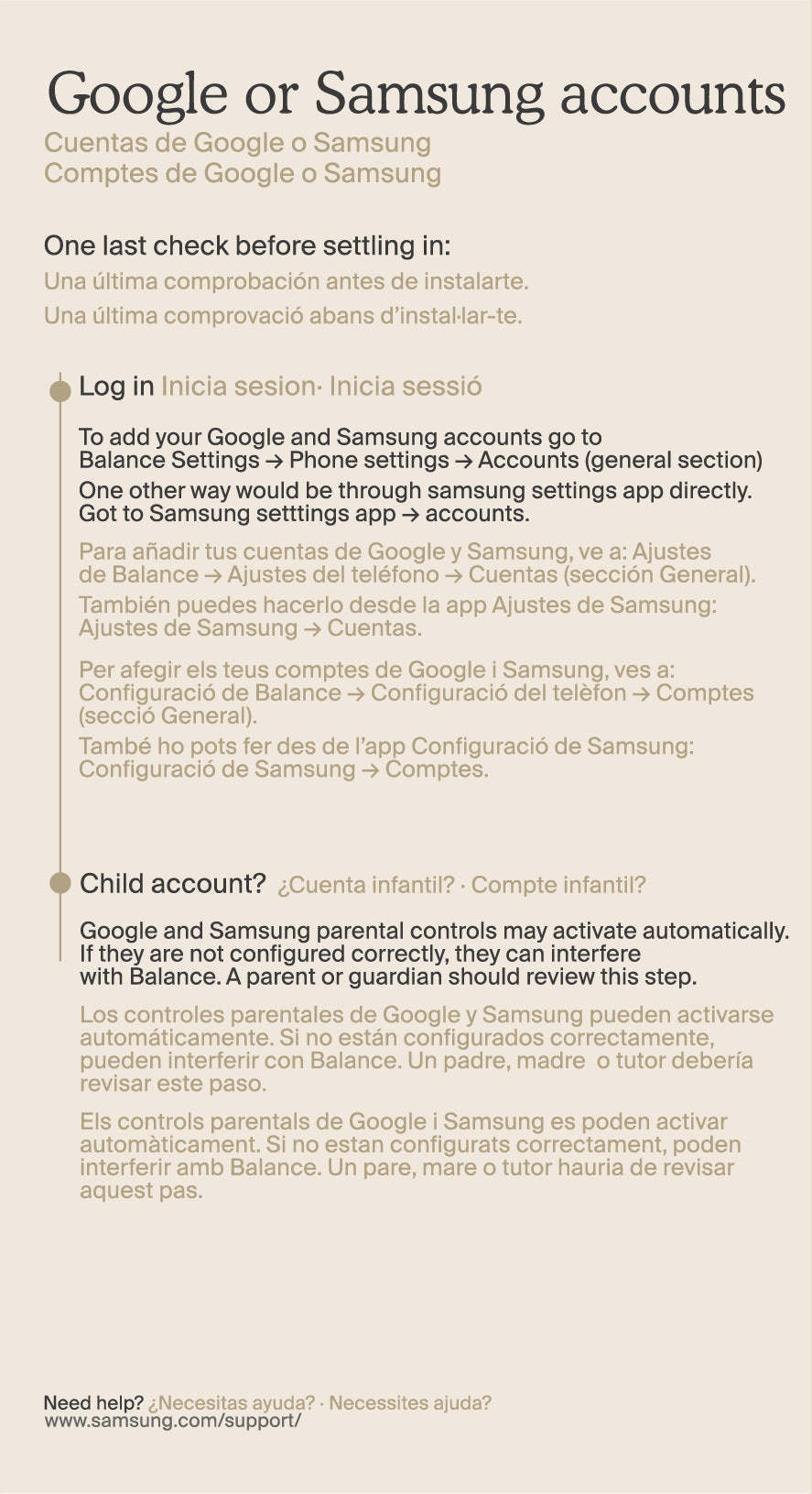
From here you can sign into your Google or Samsung account at any time through the system settings. If you use parental controls through Google or Samsung, you can set them up here, and if they are already active they will carry over automatically.
Any questions along the way, we are at hello@thebalancephone.com
-
Now, this is it.
Your Balance Phone is here.
And so is everything that comes with it.More time.
More presence.
More intention.We hope this is just the beginning of a long journey together.
Welcome to Balance Phone!